Pairings & Groups
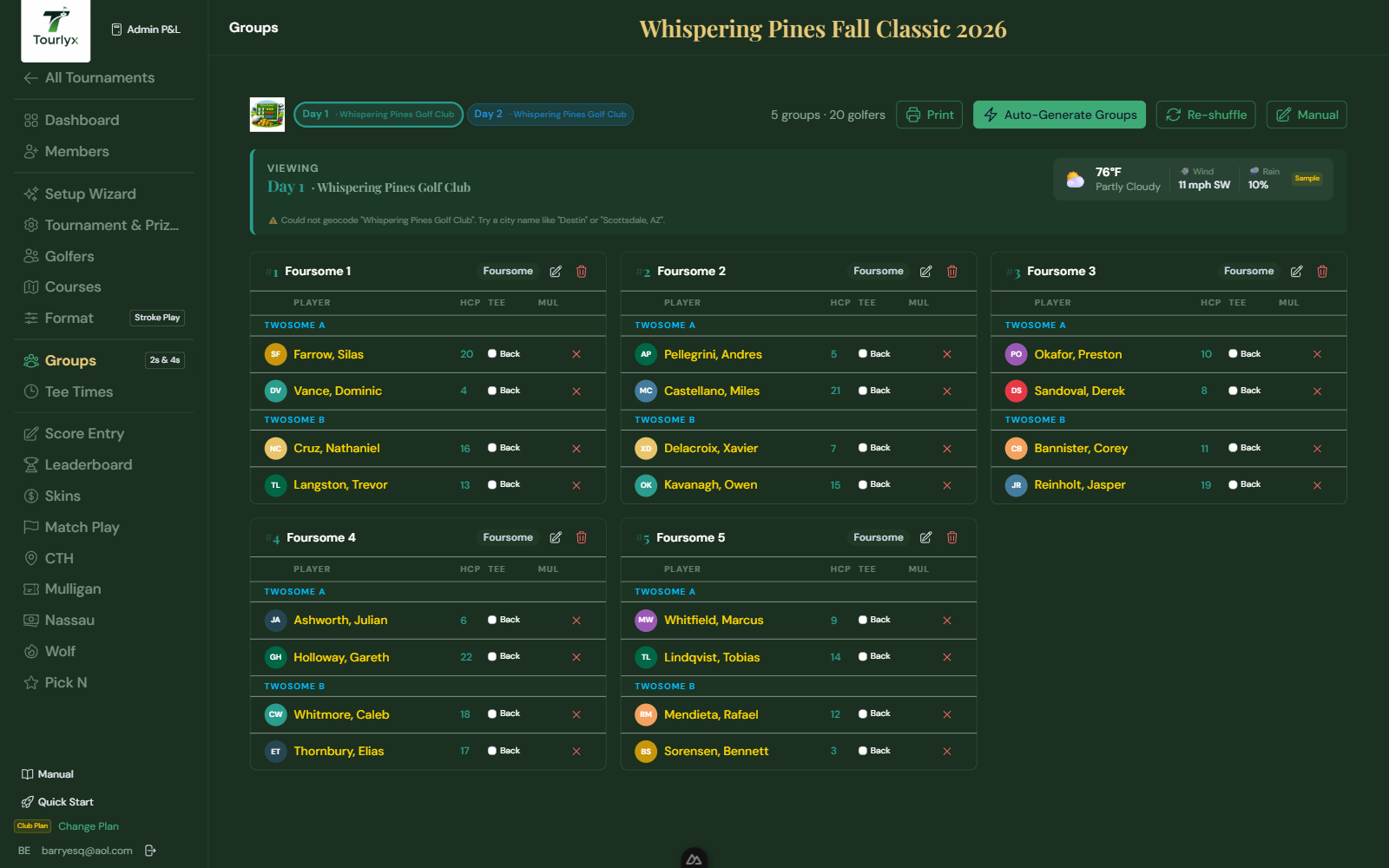
Pairings determine which golfers play together each day. Tourlyx supports Twosomes, Threesomes, and Foursomes. Foursomes are automatically divided into Twosome A and Twosome B sub-groups for two-person prize calculations.
Navigating to Pairings
- Click Pairings in the tournament navigation.
- If the tournament is multi-day, select the day tab at the top.
Option A — Auto-Generate Pairings
Auto-Generate creates groups based on your configured Group Type.
- Click Auto-Generate Pairings.
- Confirm the dialog — existing pairings for this day will be replaced.
- Tourlyx builds handicap-balanced groups: it splits the field into quarters by handicap and puts one golfer from each quarter in every group, so no team starts with an unfair edge in net team competitions.
- If the field does not divide evenly, a Ghost Fill-in banner appears.
The Flighted, By Team, and Assigned Flights methods also balance handicaps within each bucket. For a pure lottery draw with no balancing, tick True random (ignore handicaps) before generating.
Current Pairings bar
Whenever groups exist, a Current Pairings bar shows the method behind them. For older or hand-built pairings with no recorded method, Tourlyx labels two unambiguous cases “(detected from groups)” — groups that line up with Assigned Flights, or with a shared team field. Anything indistinguishable after the fact reads “Method: Not recorded — generated before method tracking, or edited manually” rather than guessing.
Option B — Manual Pairings
- Click Manual to enter the manual pairing editor.
- Click Add Group and select the group type.
- Assign golfers to each slot by selecting from the dropdown.
- Mark Blind Draw (BD) for any slot whose golfer’s score is tracked independently.
- Click Save Pairings.
Ghost Fill-ins
A ghost fill-in completes a group when the field does not divide evenly. Because ghost players pay that day’s entry fee, they are full participants in every respect: their scores count toward the group’s combined prize calculation, they compete for individual standings, and they are eligible for all prizes — including second-chance prize opportunities.
Ghost player names are displayed in gold throughout the app — on the Leaderboard, Financial Summary, Nassau results, Wolf results, Skins, Match Play, and Scores pages — so they are immediately identifiable at a glance.
- When a ghost is needed, a yellow banner appears at the top of the Pairings page.
- Select a golfer from the dropdown for each open slot.
- Click the dice icon to let Tourlyx choose a suitable ghost automatically.
- Click Assign. The ghost slot is filled and the banner clears.
Mulligan Purchases on the Pairings Page
If mulligans are enabled for this day, an M checkbox appears next to each golfer. Check it to record a mulligan purchase as an alternative to recording it on the Scores page.
Undo Pairings Changes
Tourlyx maintains up to 10 undo snapshots. Click Undo to restore the previous pairing state — especially useful after an accidental auto-generate.
Printing Pairings
Click Print to generate a printable pairings sheet: single-column group cards with golfer names, tee assignments, handicaps, and the day’s weather summary. The print window opens at full screen width so no columns are clipped.