Course Setup
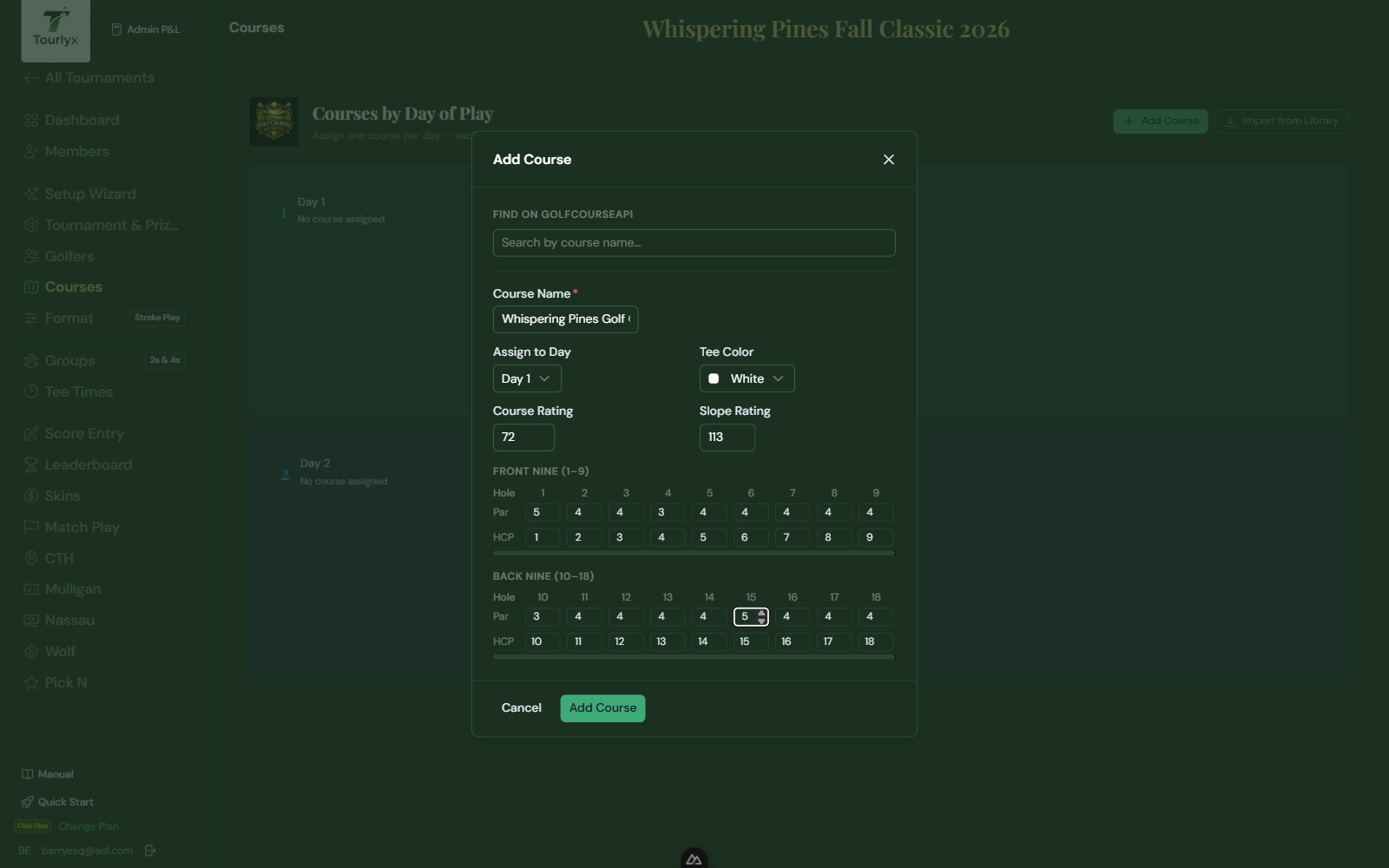
Tourlyx uses course data (par per hole, course rating, slope) to calculate net scores and apply USGA-standard handicaps. Set up a course for every day of your tournament.
Adding a Course
- Click Courses in the tournament navigation.
- Click Add Course. A course editor opens.
- Begin typing the Course Name. Tourlyx will auto-fill the course rating, slope, and hole-by-hole par and handicap index data if the course is recognized.
- Select the Tee Color. The available options update dynamically based on the actual tees the course offers (e.g., “Black”, “Blue Men’s”, “Red Women’s”).
- Review the auto-filled data and adjust any values as needed.
- Click Save Course.
- Repeat for each tournament day.
| Field / Option | Description |
|---|---|
| Course Name | Official name of the golf course for this day. Triggers auto-fill when a match is found. |
| Course URL | Optional link to the course website or scorecard (for reference only). |
| Course Rating | Official USGA course rating (e.g., 71.4). Auto-filled when available. Used in handicap calculations. |
| Slope Rating | Official slope rating (55–155). Standard is 113. Auto-filled when available. |
| Tee Color | The tee the tournament is playing from. Dynamically populated with the tee names available at that course (e.g., Back, Middle, Forward, Red, White, Blue). |
| Par (per hole) | Par value for each of the 18 holes. Auto-filled when available. |
| HCP Index | Handicap stroke index per hole (1 = hardest, 18 = easiest). Auto-filled when available. |
Re-Syncing Course Data from the API
If a course’s official data has been updated since you first added it — or if you suspect the auto-filled values are stale — you can re-fetch the latest data without removing and re-adding the course.
- Open the course editor for the day you want to update.
- Click the Sync button (cloud/refresh icon) near the Course Name field.
- Tourlyx queries the course database and updates rating, slope, par, and HCP index.
- Review the refreshed values and click Save Course.
Course Library (Pro / Club Plans)
Pro and Club subscribers can save frequently used courses to a personal Course Library. This lets you instantly import a fully configured course — rating, slope, par, HCP index, and tee — into any future tournament without retyping.
Saving a course to your library:
- Add and configure the course as normal.
- Click Save to Library on the course card.
- The course is saved to your account’s Course Library and is available across all tournaments.
Importing a course from your library:
- On the Courses page, click Import from Library.
- Browse or search your saved courses.
- Click Import next to the course you want. It is added to today’s course slot with all data pre-filled.
Tip: Always verify auto-filled course data against the official scorecard, especially rating, slope, and hole handicap indexes, before the tournament begins.